-
 virtual
instruments
virtual
instruments
- BUNDLES
- VIRTUAL FLUTES
- VIRTUAL REEDS
- VIRTUAL BRASS
- VIRTUAL STRINGS
- SYNTHESIZERS
- TOOLS, TIPS & TRICKS
-
educational
- SOUND SYNTHESIS
- HISTORY OF EL. MUSIC
- TECH FOR MUSIC EDU.
-
music and more
- SUONOPURO MUSIC
- EXTERNAL LINKS
- ABOUT SUONOPURO
- CONTACT FORM
CC CURVE SHAPER+ for Kontakt and MIDI Instruments
CC Curve Shaper+ is a free multiscript for Kontakt (v. 5.8.1 or higher) that lets you reshape the response curve of any MIDI Continuous Controller, Velocity, or Aftertouch. Whether you play a wind controller, a MIDI violin, or a keyboard with a modulation wheel or an expression pedal, you can dial in exactly how your instrument responds — from gentle and smooth to hyper-expressive — without editing any code.

The script works with any MIDI controller that sends CC data to Kontakt, including:
• Electronic wind instruments (Akai EWI, Roland Aerophone, Yamaha YDS, Berglund NuEVI, etc.);
• MIDI violins and bowed instruments;
• Breath controllers (TEC Breath Controller, Yamaha BC3, etc.);
• Expression pedals;
• MIDI keyboards and any other MIDI controller.
How It Works
The curve is defined by a flex point: a pivot on the input/output graph where the curve transitions from an expanding (convex) response to a compressing (concave) one. By moving the flex point and adjusting the overall intensity, you can sculpt any response shape between perfectly linear and extreme curve, asymmetrically biased toward soft or loud playing.The algorithm uses two independent power-function exponents — one for the range below the flex point, one for the range above — scaled by the Curve intensity knob. Input value 0 always outputs 0 (note-off safe), and any input greater than 0 always outputs at least 1, so no notes are accidentally silenced.
Instructions for Use
CC Curve Shaper+ Interface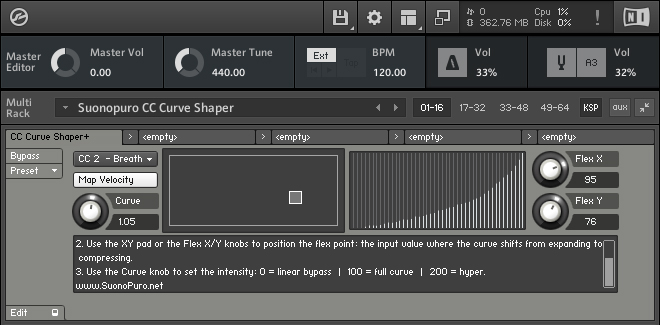
STEP 1 — SELECT YOUR TARGET
- Use the CC Selector menu to choose the MIDI CC you want to reshape. The menu covers all main performance controllers: CC 1 (Modulation), CC 2 (Breath), CC 7 (Volume), CC 11 (Expression), Aftertouch, and many more.
- Enable the Map Velocity button to apply the curve to note velocity as well. CC and Velocity can be active simultaneously.
STEP 2 — SET THE FLEX POINT
- The flex point defines the input value where the curve pivots: below it the response expands (more output for less input), above it the response compresses (less output for more input), or vice versa depending on the flex position.
- Use the XY pad to drag the flex point visually: the horizontal axis sets the input threshold (Flex X), the vertical axis sets the corresponding output level (Flex Y).
- Alternatively, use the Flex X and Flex Y knobs (range 0–127) for precise numeric control. The XY pad and knobs are always kept in sync.
- Placing the flex point in the lower area creates an expressive, breath-sensitive curve ideal for wind controllers. Placing it in the upper-right area creates a compressed, loud-biased response.
STEP 3 — ADJUST THE CURVE INTENSITY
- The Curve knob (range 0–200) controls the overall strength of the effect:
• 0 = completely linear (the script has no effect on the signal);
• 100 = full curve as defined by the flex point;
• 200 = maximum intensity, for a hyper-expressive response that greatly amplifies the shaping effect.
- The curve table display in the centre of the interface updates in real time, showing exactly how input values will be mapped to output values.
TECHNICAL NOTES
- Input value 0 always outputs 0, ensuring that note-off messages and controller resets are never accidentally raised.
- Any input value greater than 0 outputs at least 1, so no MIDI event is silenced by the curve.
- The exponents used internally are clamped between 0.7 and 1.5, preventing extreme or unstable behaviour at the edges of the range.
- All settings are persistent: the script remembers your configuration between sessions.
SAVING AND REUSING THE SCRIPT
You can save the current settings as a preset by clicking Preset > Save Preset and entering "CC Curve Shaper" as the name. This allows you to reload the script into any Kontakt rack slot at any time.
This is particularly useful in two scenarios:
- Combined use with other scripts: load CC Curve Shaper alongside, for example, the Suonopuro Switcher, each in its own rack slot, to shape your controllers while also managing instrument switching.
- Multiple instances: load two or more instances of CC Curve Shaper to apply different curves to different parameters simultaneously. For example, to shape CC 2 (Breath) and Velocity independently, disable Map Velocity on the first instance and set the CC Selector to None on the second — each instance will then process only its assigned parameter with its own curve settings.
SAVING AND REUSING THE SCRIPT
You can save the current settings as a preset by clicking Preset > Save Preset and entering "CC Curve Shaper" as the name. This allows you to reload the script into any Kontakt rack slot at any time.
This is particularly useful in two scenarios:
- Combined use with other scripts: load CC Curve Shaper alongside, for example, the Suonopuro Switcher, each in its own rack slot, to shape your controllers while also managing instrument switching.
- Multiple instances: load two or more instances of CC Curve Shaper to apply different curves to different parameters simultaneously. For example, to shape CC 2 (Breath) and Velocity independently, disable Map Velocity on the first instance and set the CC Selector to None on the second — each instance will then process only its assigned parameter with its own curve settings.
HOW TO GET CC CURVE SHAPER+ FOR KONTAKT
CC Curve Shaper+ is included for free in all Suonopuro virtual instrument downloads.